What connecting your log actually does
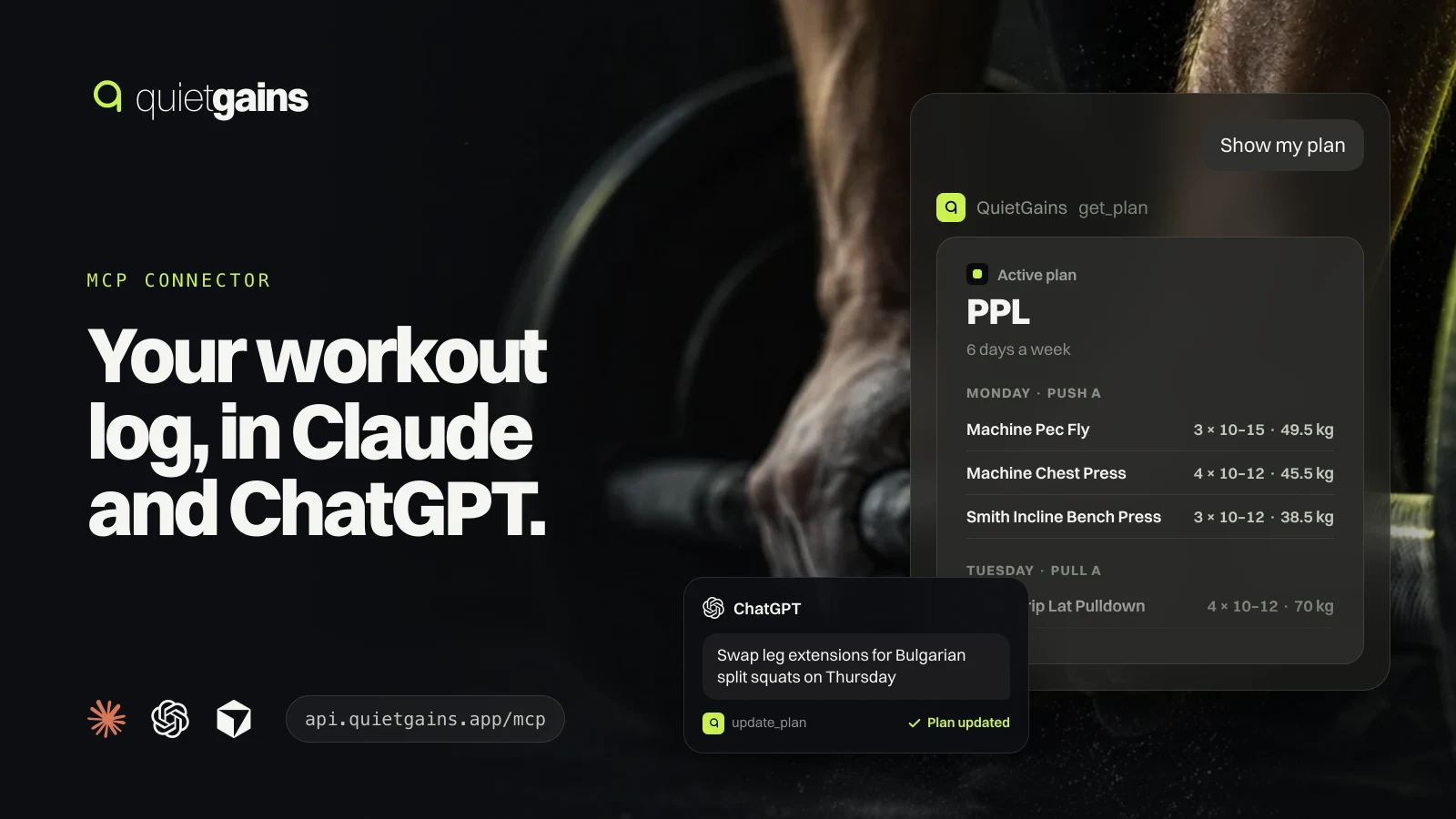
An MCP server is a standard way for an AI assistant to reach an app’s data through named tools. QuietGains runs one at https://api.quietgains.app/mcp. Once you connect it, your assistant stops guessing from what you paste into the chat and reads your real log instead: the sets you logged on Tuesday, the plan you follow, what you ate today, your last body scan. When you ask for a change, it writes that change to your account, and the app on your phone updates to match.
The connection is official and first-party. You sign in with the same Apple or Google account you use in the app, there is no API key to copy, and the assistant never sees your password.
What you need before you start
- A QuietGains account with Premium. The connector is part of Premium; without it, every tool answers that it needs Premium.
- An assistant that supports remote MCP servers with sign-in: Claude (web, desktop and mobile), Claude Code, ChatGPT in developer mode, Cursor, or another MCP client.
- For Claude on the Free plan: room for one custom connector, which is the Free plan limit.
Connect QuietGains to Claude
- Open claude.ai, go to Settings and choose Connectors.
- Choose Add custom connector. Name it QuietGains and paste
https://api.quietgains.app/mcpas the server URL. - Keep the detected options: Sign in now, and Register automatically for the OAuth client. Leave request headers empty. Choose Add.
- A QuietGains page opens. Sign in with Apple or Google, check that the page names your assistant, and choose Allow.
- Back in Claude, start a chat and ask “Show my plan in QuietGains”. If the tools do not appear, open the + menu in the chat, choose Connectors and switch QuietGains on.
A connector you add on claude.ai is available in the Claude desktop and mobile apps too, because Claude reaches the server from its own cloud rather than from your device. Claude groups the tools into ones that show an interactive card and read-only ones, and asks before each call until you change that in the connector’s settings. A sensible setup is to allow read-only tools always and keep approval on anything that writes.
Connect QuietGains to ChatGPT
ChatGPT adds custom MCP servers through developer mode on the web. OpenAI documents it for Business, Enterprise and Edu workspaces, where an admin turns developer mode on and creates the app; availability on personal plans has changed more than once, so check OpenAI’s current help page for your account. Once developer mode is on, create an app with the same address, choose OAuth for authentication and complete the same QuietGains sign-in.
Connect from Claude Code, Cursor and other MCP clients
In Claude Code, run claude mcp add --transport http quietgains https://api.quietgains.app/mcp, then open /mcp and choose QuietGains to sign in in your browser. Cursor and most other clients take the same address in their MCP settings as a remote or HTTP server. Any client that follows the MCP authorization standard finds the sign-in page by itself; there is nothing else to configure.
What you can ask once it is connected
| You ask | What happens |
|---|---|
| How did my last Pull A go? | Reads that workout: duration, every set with weight and reps, and total volume. |
| Show my plan for this week | Reads your active plan day by day, with sets, rep ranges and target loads. |
| How has my bench press moved since August? | Reads the exercise history and your personal records for that lift. |
| Swap leg extensions for Bulgarian split squats on Thursday | Asks for approval, then replaces that exercise in the same slot and keeps the rest of the day. |
| Log 2 eggs and a coffee for breakfast | Searches the food database, asks for approval, then adds the entries to today. |
| What did I eat yesterday against my targets? | Reads that day’s food and water next to your calorie and macro targets. |
| Compare my last two InBody scans | Reads both body composition tests with weight, muscle and fat mass. |
The tools cover the parts of the app you would otherwise retype: workouts and personal records, exercise history, plans (read, create, edit, switch the active one), the exercise library including your own exercises, food and water, body composition tests, training locations and badges. In Claude and other clients that render MCP Apps, workouts, plans, lift trends and food days come back as QuietGains cards that follow the chat’s light or dark theme, each with an Open in QuietGains button for the same screen in the app. Elsewhere they come back as clean text.
How changes reach your phone
Every tool that writes is marked as one, so your assistant shows its approval prompt before it runs. An approved change is saved to your account straight away, the same way the app saves a change from your iPhone. Plan edits keep each day and exercise in place, so the app’s next-up day and any history linked to a slot stay intact. On QuietGains 1.0.5 or later, the app usually updates in the background within moments. Earlier versions show the change the next time you open the app.
If you change the same plan on your phone and through your assistant at the same moment, the newer server copy wins and your phone keeps only its own next-up day. Nothing you logged in a workout is overwritten by a plan edit.
Privacy and control
- Sign-in uses OAuth. Your assistant receives a token that works only for the MCP server; it cannot use the app’s own API.
- The QuietGains sign-in page shows which app is asking and the address it will return to, before you choose Allow.
- The server only ever returns your own records. It does not invent sets, foods or dates, and it answers plainly when something is not in your log.
- To disconnect, remove QuietGains from your assistant’s connector settings. Deleting your QuietGains account ends every connection.
What the connector does not do
QuietGains returns your records and the exercise catalog; it does not give training, nutrition or medical advice. Anything your assistant says about those records is the assistant’s own output, so treat a suggested change like any other suggestion and read the approval prompt before you accept it. If you want individual guidance, that belongs with a qualified coach who can see you train.
Troubleshooting
| What you see | What to do |
|---|---|
| Every tool says the connector is part of Premium | Subscribe or restore Premium in the app, then ask again. No reconnect is needed. |
| The sign-in page says the link has expired | Start the connection again from your assistant; each sign-in link works once. |
| The tools never appear in a chat | Check the connector is switched on for that conversation, then start a new chat. |
| An edit does not show on the phone | Open QuietGains so it syncs, and check the phone is signed in to the same account. |
New to logging? Start with the workout log template so there is something worth asking about, and see how estimated 1RM, volume and rep PRs differ before you ask your assistant to compare lifts.