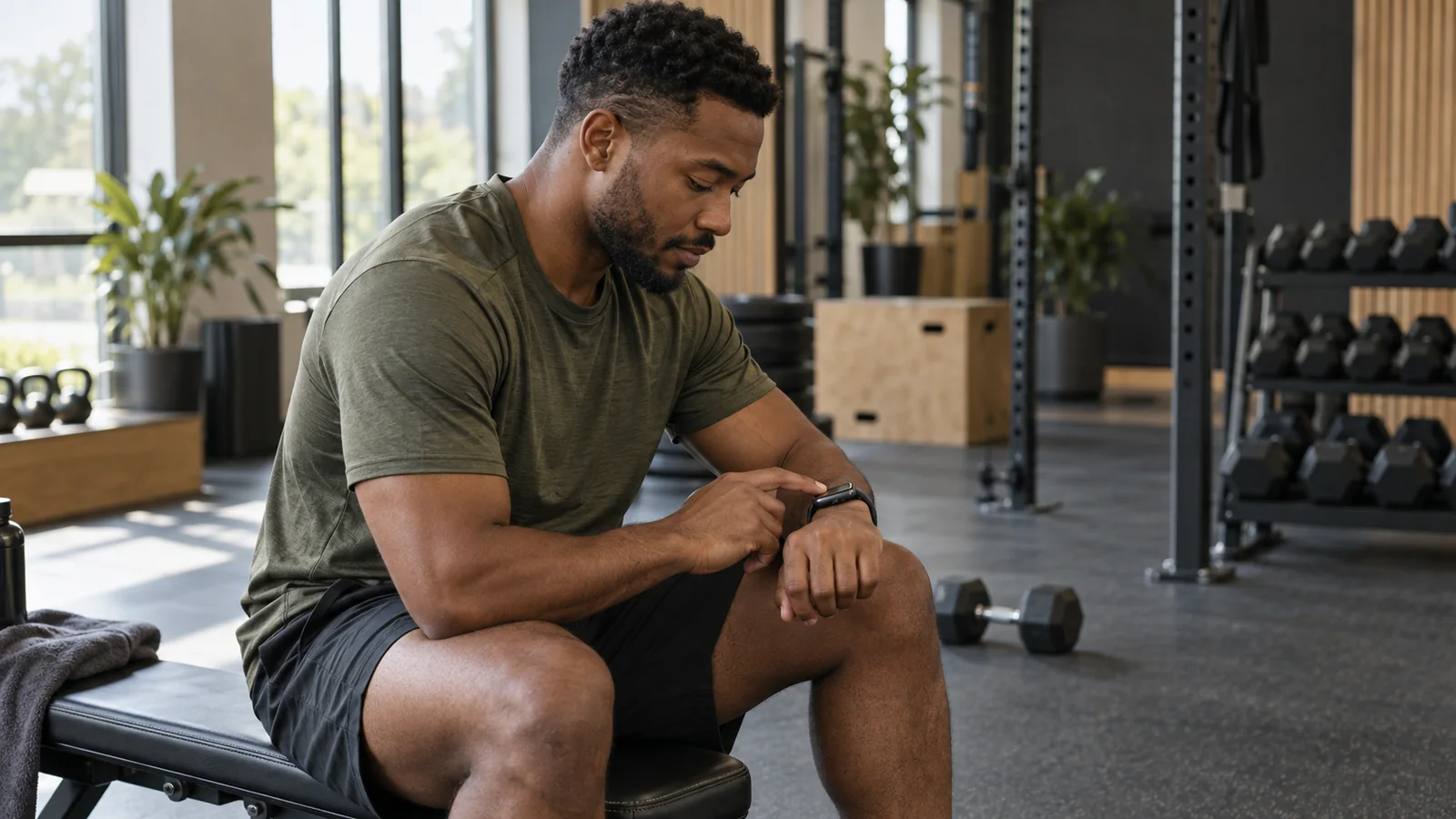
Choose a set log, then choose what records the workout
A useful lifting entry says which exercise you did, how much weight you used and how many reps you completed. A session duration answers a different question. Apple’s Workout app records workouts and displays session metrics such as elapsed time and heart rate; the available views depend on the activity.[1] For the workflow below, use a Watch logger that lets you enter individual sets.
| Record | What to check |
|---|---|
| Set history | Exercise, load, units and completed reps. This is what you compare before repeating a lift. |
| Rest timer | Time between sets. A countdown by itself does not confirm that the set was saved. |
| Workout summary | Start, end, duration and any supported sensor metrics. A summary does not establish that individual set details were recorded. |
Decide which app will own the workout recording. Apple Watch supports only one active HealthKit workout session at a time; starting another can end the first.[2] If your logger already starts workout tracking, do not also start Apple’s Workout app just to obtain a second summary. Follow your logger’s documented workflow and check the result afterward. A paper log alongside one recording app is a different arrangement.
1. Install the Watch app and prepare your session
An iPhone app being installed does not prove its Watch companion is installed. Apple supports installing apps through the Watch App Store or through the Watch app on the paired iPhone. On iPhone, look under My Watch for Available Apps and choose Install for the relevant app.[3] Check its compatibility information and current feature list before choosing it for your training.
Open the logger on both devices while they are connected. Choose the intended session and confirm that the exercises you need are available on the Watch. Do this before heading to a rack: a plan you can see on the phone has not necessarily become a usable Watch session yet.
- Check kilograms versus pounds, especially after installing an app or changing preferences.
- Confirm the exercise variation: a dumbbell press and a barbell press need separate histories.
- Check whether prefilled numbers are targets or values from a previous session.
- Know how to correct a set and how to finish a session without discarding it.
Use a consistent load convention. For a barbell, our template records the total including the bar. For a paired dumbbell press, it records one dumbbell’s weight, labelled per hand, and reps completed by each arm. Your app may use another convention. Check before entering numbers, and use the dumbbell logging examples when the distinction is unclear.
2. Log each completed set, then check the confirmation
Select the exercise and confirm the weight before the set. Afterward, change the reps to the number you actually completed and use the app’s logging control. Wait until the set is visibly recorded or the next set becomes active. A value sitting in an editable field is not enough evidence that it entered your history.
Keep warm-up entries distinguishable from working sets. If the app has a set-type control, use it. If it does not, preserve the distinction in a note or a separate record. Our guide to warm-up and working sets explains why mixing them can change a volume comparison.
| What happened | What belongs in the log |
|---|---|
| Bench press: target 8, completed 8 | Working set 1: 60 kg total × 8 reps. |
| Same load: target 8, completed 7 | Working set 2: 60 kg total × 7 reps. Replace the target rather than confirming 8. |
| Accidentally confirmed 8 on set 2 | Correct the existing entry to 7. Do not add another set to compensate for the mistake. |
If a rest timer starts when you log, check that its start corresponds to the completed set. Logging a minute late also starts that timer a minute late. An adjustable timer can help you account for this, but changing a countdown should not require inventing or deleting a completed set. See rest timers on the Lock Screen for the visibility and alert checks.
3. Finish the session and verify the saved history
End the session through the logger’s finish flow. Read any save or discard confirmation rather than dismissing it automatically. When the devices are connected, open the phone’s history and find the same date. Check the exercise names, number of sets, load units and the corrected rep count. This is also a useful check after your first session with a new app version.
If you also want the workout in Apple Health, verify that separately. A complete lifting log and a Health workout are different records, and their details can differ. Follow the Apple Health workout checklist to inspect the source and time of the saved session.
When something is missing, identify which step failed
Apple identifies a disconnected Watch with a red iPhone or red X indicator. Its first connection checks include bringing the devices together, checking Airplane Mode, and enabling Wi-Fi and Bluetooth on iPhone.[4] Preserve any visible unsaved set details before taking steps that could interrupt the session.
| Symptom | First useful check |
|---|---|
| The app is missing from the Watch | Check Watch installation and device compatibility. The iPhone icon alone does not establish either. |
| The expected session is missing | Reconnect the devices and reopen the selected plan before starting a second session. |
| A completed set still shows the target | Check whether you edited the active set, saved it, or are viewing a different exercise. |
| The phone has no finished session | Check the Watch’s completion state and connection. Keep a note of the date and completed sets before escalating. |
| Values look doubled or unfamiliar | Check kg/lb and per-hand versus combined load before concluding that history changed. |
Can I log without bringing my iPhone?
Apple Watch can perform some functions, including recording workouts, without its paired iPhone nearby.[5] That does not establish the offline behavior of every third-party logger. Check whether your chosen app makes the planned workout available, saves set edits locally and transfers them later. Confirm those steps with a short practice session before depending on phone-free logging at the gym.
Will the Watch automatically count my reps?
This guide describes manual set entry. Automatic rep detection is a separate app feature, not something to assume from the phrase “Apple Watch support.” Check the app’s description and review the saved reps against what you performed. Even a convenient prefilled value still needs your confirmation.
See QuietGains pricing for current plan details. If you prefer to start on paper, the free workout log template uses the same exercise, weight and rep checks.
Sources
- [1]Apple. Start a workout on Apple Watch. Apple Watch User Guide. Accessed 24 September 2026. support.apple.com/en-nz/guide/watch/apdd16e8761a/watchos
- [2]Apple. HKWorkoutSession. Apple Developer Documentation. Accessed 24 September 2026. developer.apple.com/documentation/healthkit/hkworkoutsession
- [3]Apple. Download apps on your Apple Watch. Apple Support. Accessed 24 September 2026. support.apple.com/en-gb/109023
- [4]Apple. If your Apple Watch isn’t connected or paired with your iPhone. Apple Support. Accessed 24 September 2026. support.apple.com/en-au/108360
- [5]Apple. Use your Apple Watch when your iPhone is not nearby. Apple Support. Accessed 24 September 2026. support.apple.com/en-ie/108300